
NECO – PowerPoint Template User Guide
Updated October 2025
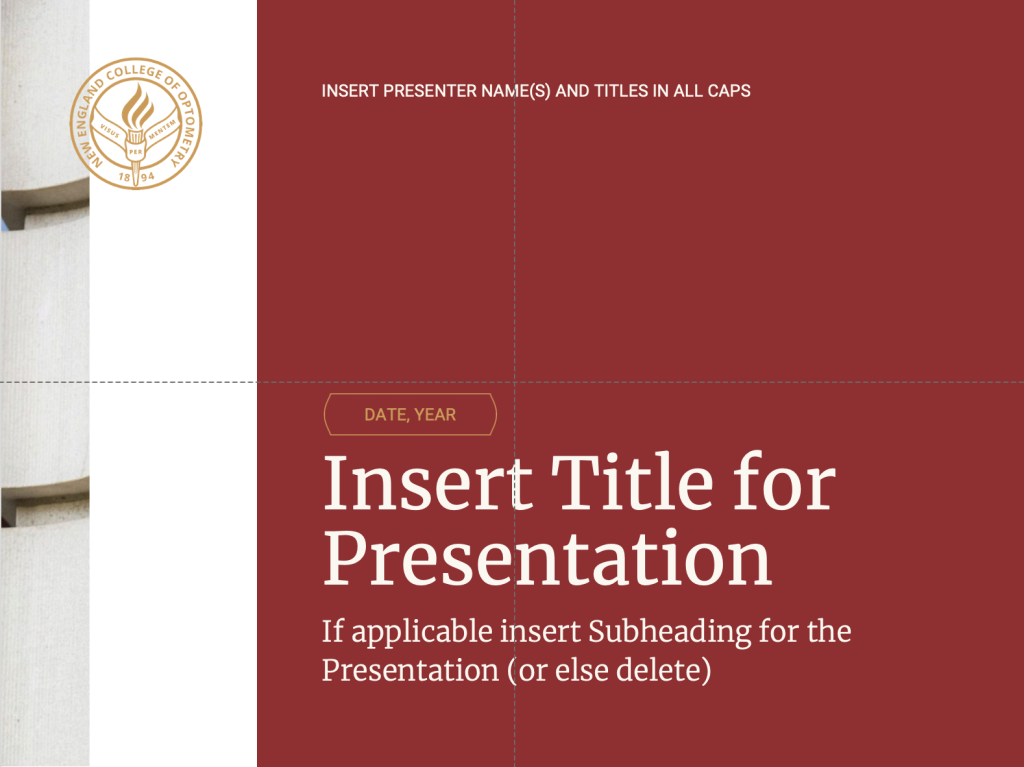
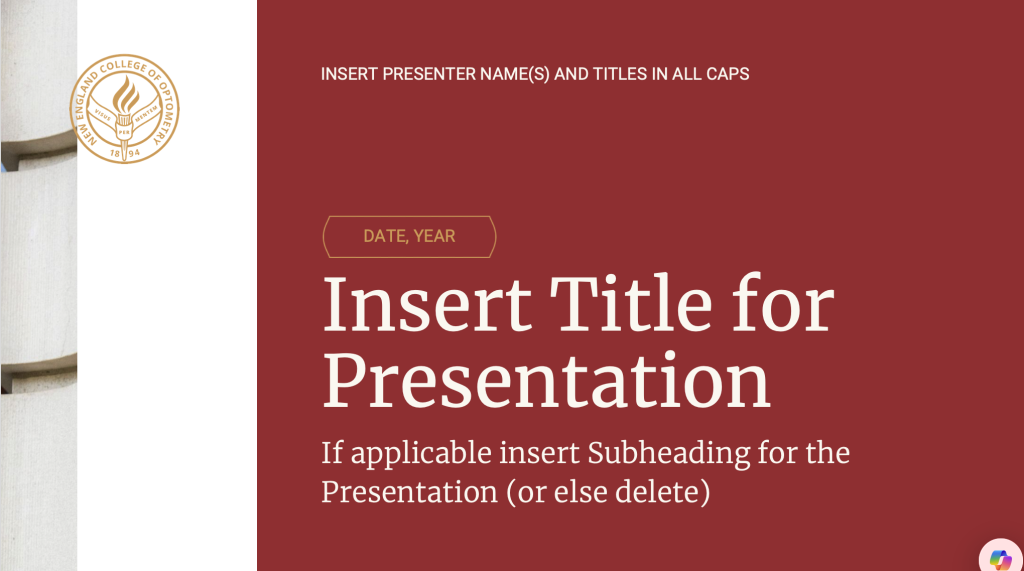
The NECO PowerPoint templates are designed to support the brand standards and identity of NECO. They include a variety of slides to accommodate different presentation needs, all packaged in a way that allows you to quickly copy slides into your own presentations.
NECO Master PowerPoint Template – Consolidated
The NECO Master PowerPoint Template – Consolidated brings together all individual branded slides into two comprehensive PowerPoint files: Standard (4:3) and Widescreen (16:9).
Each file contains approximately 60 slides, organized into sections such as:
Cover Slides
Section Dividers
General Body Slides
Speaker Slides
Tables & Charts
Closing Slides
Getting Started with the Consolidated Templates
To use the NECO Master PowerPoint Template – Consolidated, you’ll need to download and open the files locally in the PowerPoint app. Click here to download the consolidated ZIP file.
Note: When opening the file, PowerPoint may display a yellow “Protected View” or “Enable Editing” banner. You do not need to enable editing to copy slides into your own presentation — simply copy and paste as instructed below.
Steps:
Download the ZIP file
Unzip (extract) the folder to your computer.
Determine which format you need:
Standard (4:3) for older projectors or display setups
Widescreen (16:9) for most modern laptops, monitors, and projectors (most common)
Open the corresponding PowerPoint file:
All Slides – Standard (4:3)
All Slides – Widescreen (16:9)
Browse the slides to find the one you need.
While the slide is selected, copy the slide (Ctrl+C or Edit 🠆 Copy).
Open your own PowerPoint presentation (locally on your computer, in the PowerPoint app).
Paste the slide (Ctrl+V or Edit 🠆 Paste).
Done — the slide is now part of your deck.
Tips for Use
On the left-hand panel, sections may be collapsed. Expand or collapse them to quickly locate the type of slide you need.
The files are set to read-only, but slides can still be copied and pasted into your own presentations without issue
The ZIP folder also includes a small Excel file used to generate images for the pie chart templates. This is only needed if you wish to edit or recreate those charts.
If you don’t need to edit pie charts, you can ignore this file
Adjusting Slide Size: If you are creating a new presentation, you can match NECO’s aspect ratios by going to the Design tab 🠆 Slide Size, and choosing either 16:9 Widescreen or 4:3 Standard.
Important: If you copy a slide into a presentation and then change the slide size, the copied slide will not automatically reformat to the new size. Always select the correct aspect ratio first before pasting slides in.
Software Requirements: These files are designed for recent versions of Microsoft PowerPoint (2016 or newer, Office 365). They may not display or function correctly in older versions (such as PowerPoint 2004)
Downloads
- Downloadable Master in a ZIP format: CLICK HERE
- Viewable Master in Google Drive: CLICK HERE
Legacy Guide
The following instructions applied to the original individual PowerPoint template files. They are provided here for reference but may no longer be necessary with the new consolidated template.
How to save and use the NECO PPT template
There are two primary ways to use the template. These instructions are for PCs. It may be different for Mac users.
Microsoft’s instructions for both PC and Mac users found here.
1) Re-purpose template each time
Download the template to your computer
Open and Save As a regular ppt document.
Create your presentation
2) Import it as a Design, so that it’s always available anytime you open PowerPoint
Download the template to your computer
Save it as a Template in the Custom Office Template folder, generally found in your Documents folder.
Go to the Design tab in a PowerPoint document, and click for More Themes
It will direct you to the Customer Office Template folder. Select the NECO template.
The design should now be available for any new ppt you create. Just go to Designs and Select the NECO presentation.